

- Introduction
In modern robotics, achieving precise control and reliability demands rigorous testing. NVIDIA Omniverse Isaac Sim provides the essential, high-fidelity environment where complex robotic tasks can be tested, optimized and comprehensively validated. This platform facilitates the development of accurate digital twins and scalable, physics-based testing frameworks, a critical capability that is actively closing the performance gap between the virtual and real worlds.
This post details the end-to-end workflow that the HCLTech Kinetic AI team used to configure the Trossen Solo AI Robotic Arm within this powerful simulator. It will guide you through every technical stage, from the foundational URDF import to seamless ROS 2 MoveIt motion planning integration, providing clear insight into the key challenges and effective solutions encountered along this advanced development path. - Environment Setup
To run this system, you’ll need a stable Linux platform integrated with a compatible distribution of ROS 2, along with a recent version of NVIDIA Omniverse Isaac Sim. For hardware, an RTX-series GPU is required for the high-fidelity rendering. Finally, the ROS 2 bridge extension must be enabled within Isaac Sim to ensure full functionality and seamless integration between the simulation and control stack. - Setting Up the Trossen Arm ROS 2 Workspace
To get started, create a new ROS 2 workspace and place the trossen_arm_ros repository from TrossenRobotics in its src folder, bringing all necessary source files for the Trossen arm into the environment. After the workspace is built and its dependencies are installed, the robot’s URDF file can be converted into USD for use in Omniverse and the included MoveIt package can be integrated with the platform through the ROS 2 Bridge extension for simulation and motion planning. Importing the URDF
In Isaac Sim, you can bring your robot model into the scene by opening the File → Import menu from the top toolbar, which launches a file browser for selecting assets. From there, navigate to your robot’s URDF file, choose appropriate settings and confirm the selection. Isaac Sim will then parse the URDF and automatically spawn the complete robot inside the virtual stage, displaying its links, joints and meshes directly in the 3D viewport.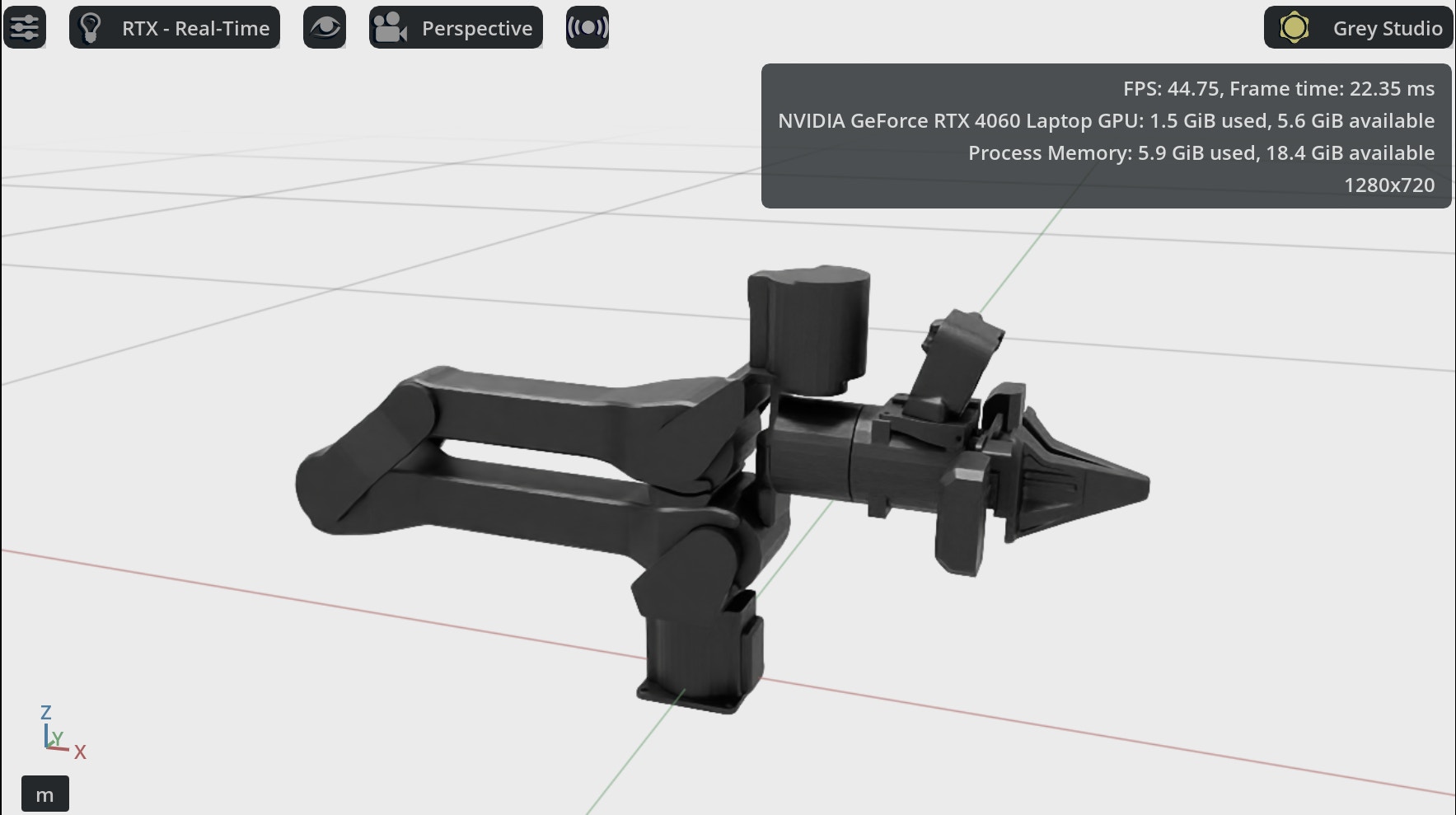
At this point, you should see the full robot structure in the Stage Tree view. This validates that your URDF was correctly parsed into the USD format.
After importing the URDF and generating the USD model, the robot's joint parameters must be precisely tuned to improve motion stability and reduce potential slippage. This involves configuring the joint's Drive Type to Force. Critical adjustments are then made to the drive's Stiffness and Damping values to control the joint's response and stability. For safe and reliable motion, it is also essential to set a suitable Max Force value, which acts as a ceiling for the force the motor can apply. Adjustments to these drive settings, along with fine-tuning the contact distance between links, help achieve smoother, more reliable interactions in simulation and ensure better compatibility with MoveIt for motion planning.Configuring MoveIt 2 for Isaac Sim
To enable the powerful ROS 2 MoveIt motion planning framework to control your robot model within a virtual environment like NVIDIA Isaac Sim, you must conditionally configure the hardware interface within your robot's ros2_control definition. This step is essential for specifying how MoveIt's calculated commands are transmitted to and executed by the simulated joints.<xacro:if value="${ros2_control_hardware_type == 'isaac'}">
<plugin>topic_based_ros2_control/TopicBasedSystem</plugin>
<param name="joint_commands_topic">/isaac_joint_commands</param>
<param name="joint_states_topic">/isaac_joint_states</param>
</xacro:if>The configuration block for ros2_control_hardware_type == 'isaac' activates a crucial software bridge for testing your robot's control stack in the high-fidelity NVIDIA Isaac Sim environment. Instead of communicating with physical motors and sensors, it loads the topic_based_ros2_control/TopicBasedSystem plugin. This plugin serves as a ROS 2 communication layer, instructing the control manager to publish joint commands (like desired positions or torques) to a specific topic (/isaac_joint_commands) that Isaac Sim subscribes to. Conversely, the plugin subscribes to another topic (/isaac_joint_states) where Isaac Sim publishes the robot's current state as calculated by its internal physics engine. This clever use of topics allows the standard ROS 2 controllers to operate seamlessly, treating the simulator as a virtual piece of hardware, which is vital for a hardware-agnostic development workflow.
After updating your configuration, the critical steps are to rebuild your workspace and then launch your robot application (e.g., ros2 launch trossen_arm_moveit moveit.launch.py robot_model:=wxai ros2_control_hardware_type:=isaac). This process activates the new interface settings and initializes the control components.
The appearance of /isaac_joint_states and /isaac_joint_commands when listing ROS 2 topics confirms that the dedicated hardware interface bridge is successfully operating. These topics represent the real-time communication channel between your ROS 2 controllers and the Omniverse simulation running Isaac Sim. The /isaac_joint_commands topic is where your control system publishes desired movements to the simulator, and the /isaac_joint_states topic is where the simulator publishes the robot's resulting positions and velocities back to your ROS 2 controllers. This two-way communication establishes a closed-loop control system, ensuring the motion planning and execution are accurately synchronized between the planning framework and the virtual robot.
Setting Up the Action Graph in Omniverse
The final, crucial step in integrating ROS 2 with Isaac Sim is visually connecting the nodes within the simulation using the Action Graph. This graph acts as the literal bridge, dictating the real-time data flow between your high-level ROS 2 controllers and the Omniverse physics engine.Begin by accessing the Action Graph and drag and drop the required widgets onto the graph canvas. The key nodes involved are:
- on_playback_tick: Ensures the graph executes continuously, keeping communication synchronized with the simulation's time steps.
- isaac_read_simulation_time: Supplies the necessary time data to stamp outgoing ROS messages accurately.
- articulation_controller: Manages the robot's physical joints. This node must have its Target Prim set to your robot's root link (e.g., manipulator/base_link) and, crucially, "usePath" unchecked for reliable joint control.
The communication itself is handled by two dedicated nodes, ensuring a proper closed-loop system:
- Input (Commands): The ros2_subscribe_joint_state node listens for the commands calculated by your ROS 2 controllers. You must configure its Topic Name to match the output topic from ROS 2: /isaac_joint_commands.
- Output (Feedback): The ros2_publish_joint_state node takes the robot's current position and velocity from the simulation and sends it back to ROS 2. You configure this node's Topic Name to /isaac_joint_states.
By properly connecting the execution and data pins of these nodes, you complete the hardware interface setup, allowing the ROS 2 control stack to operate the virtual robot.
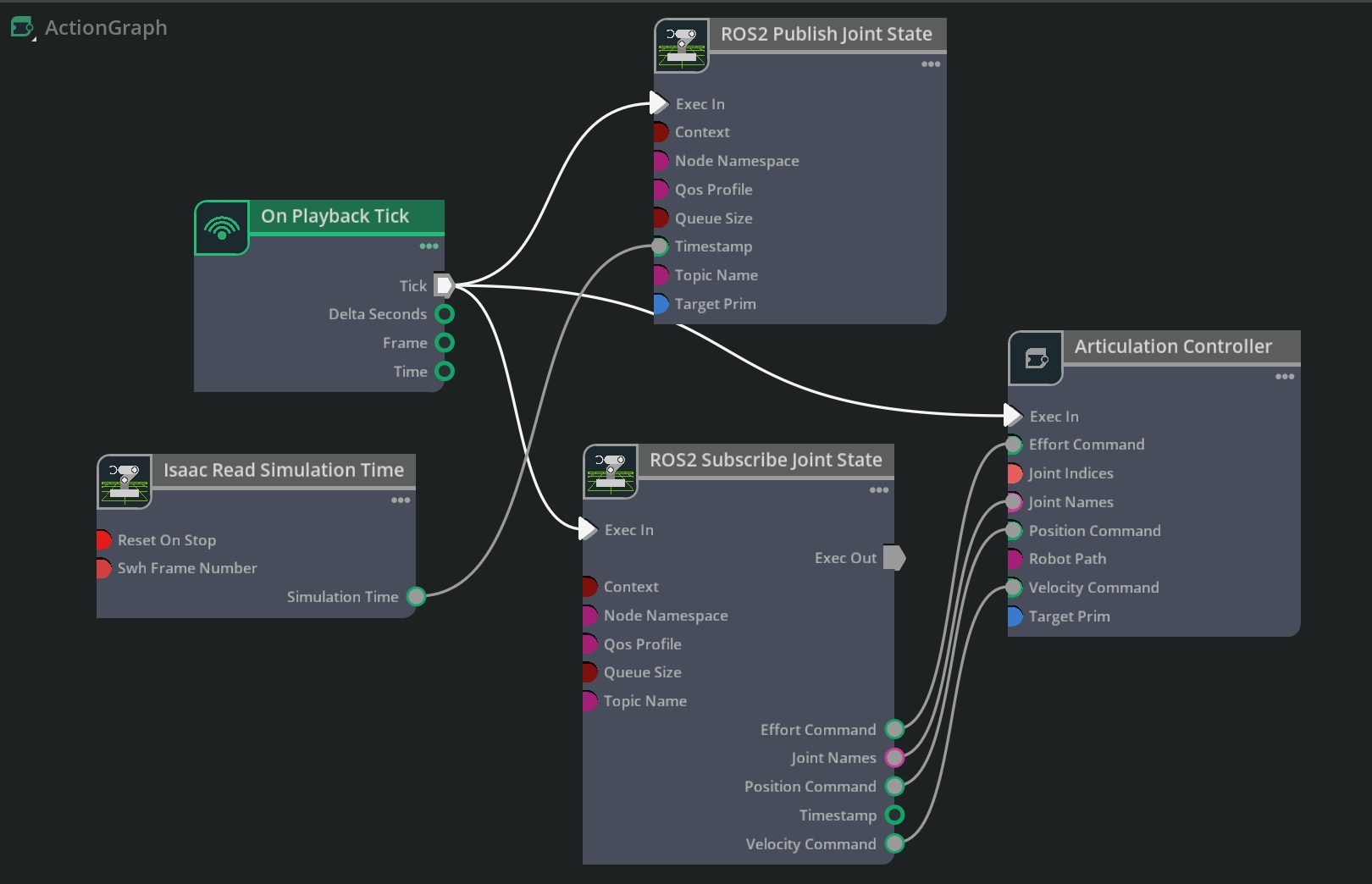
These nodes handle bidirectional communication between the simulation and ROS 2 MoveIt.
Running the Simulation
The sequence initiates with a critical step: clicking the Play button in Isaac Sim. This action is essential for establishing the live ROS 2 communication bridge between the simulation environment and your robot software stack. With the simulation running, it immediately begins subscribing to the designated topic, /isaac_joint_commands, thereby becoming ready to receive precise motion instructions generated by MoveIt 2. Concurrently, the simulator publishes real-time positional data via the /isaac_joint_states topic, ensuring the motion planner receives accurate feedback regarding the robot's current configuration.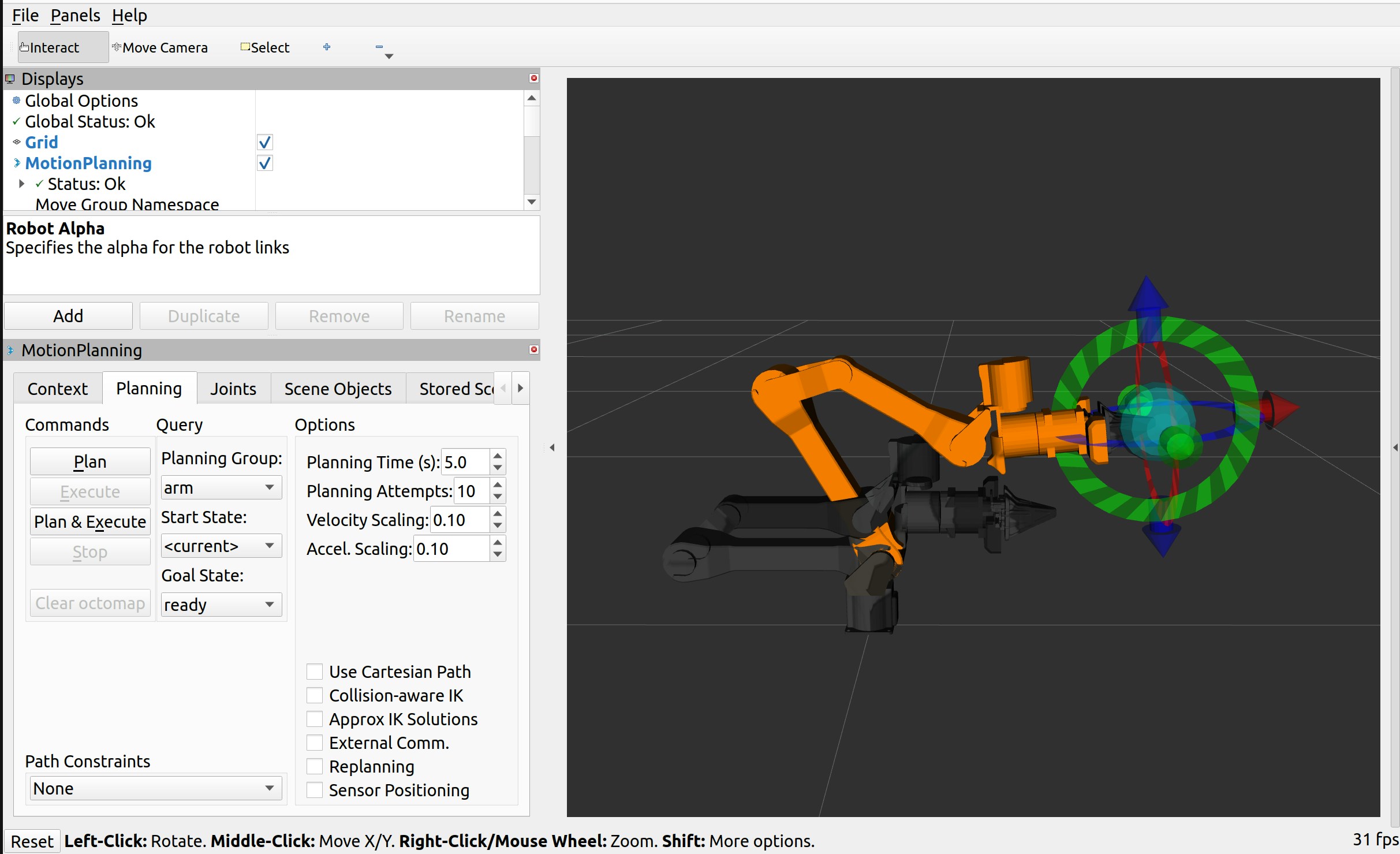
Once this robust communication link is verified, the user transitions to RViz 2 to load the MoveIt configuration, define the desired motion goal and, by clicking Play and Execute, send the fully calculated, collision-free trajectory for synchronized execution within the virtual environment.
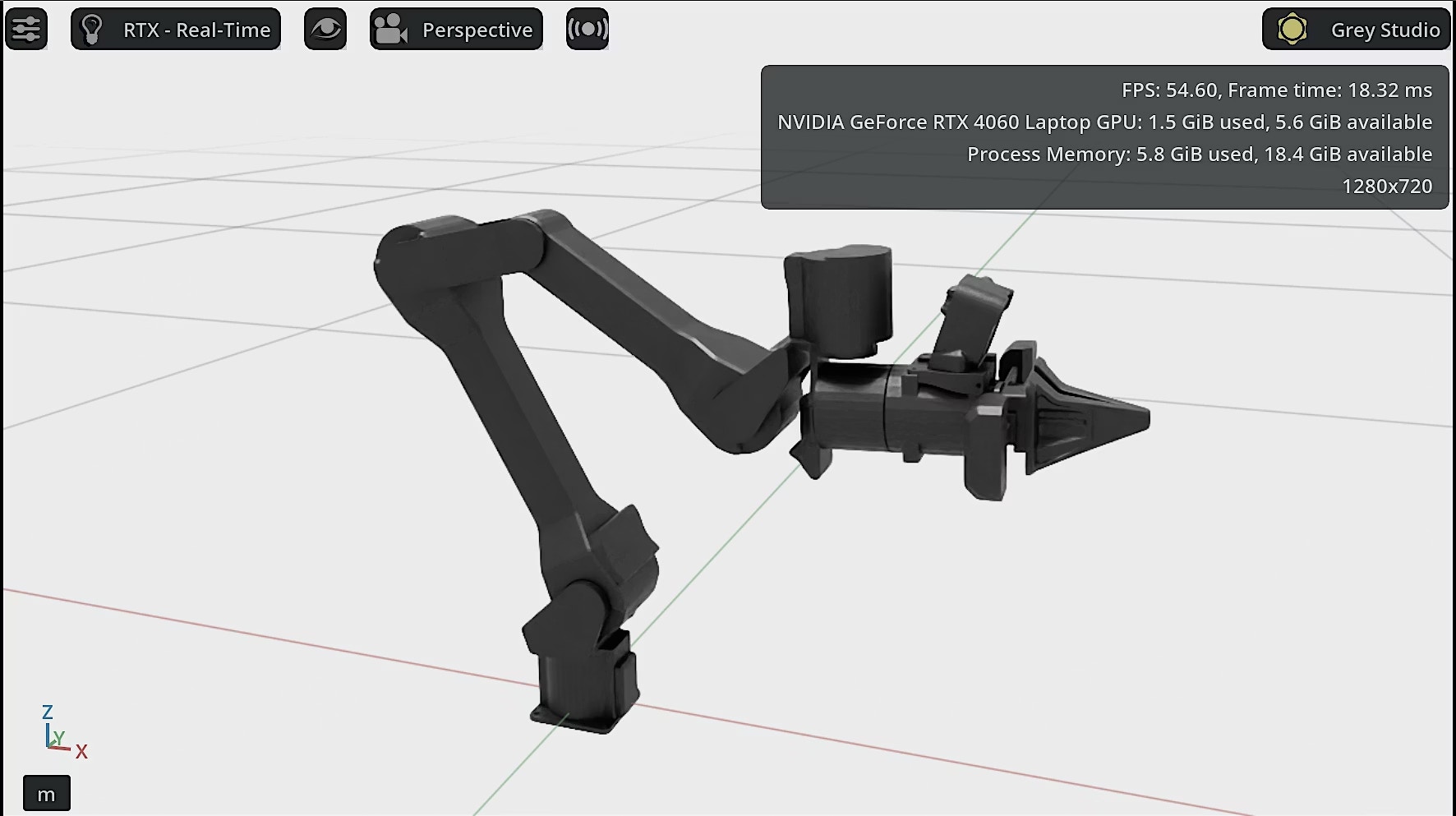
The executed robot motion will be visualized simultaneously in RViz 2 and the Omniverse simulation, allowing you to observe the planned trajectory in real time across both interfaces.
Challenges and Key Learnings
The integration of MoveIt with the Omniverse ecosystem often requires systematic troubleshooting to ensure high fidelity and stable control. The most critical challenge we faced was achieving accurate, stable motion, which demanded tuning of the joint physics. This involved specifically configuring the joint Drive Type to Force and then carefully adjusting the Stiffness and Damping values until the robot’s simulated dynamics matched the required response stability.While tuning the physics was essential, successful deployment also required addressing several common integration requirements. For example, to establish the base model, we had to ensure proper URDF import by removing problematic Gazebo-specific tags and correcting incorrect joint pivots via adjustment of transforms in the USD Stage, ensuring the default joint positions were zeroed correctly. Additionally, we addressed the potential for ROS 2 Bridge topic mismatches by verifying topic names across the MoveIt configuration and the Omniverse Action Graph. Finally, to ensure faster iteration, we optimized the environment by disabling unused extensions to mitigate performance bottlenecks.
Integrating ROS 2 MoveIt with Isaac Sim is a game-changer, enabling precise motion planning, collision detection and reliable trajectory execution within a highly photorealistic virtual world. This seamless connection between the simulation and control stack is instrumental in accelerating robot testing and validation, drastically reducing both iteration time and cost before deployment on physical hardware.
- Conclusion
The comprehensive workflow detailed here successfully demonstrated how a complex system, exemplified by the Trossen Solo AI (or similar robotic arms), can be meticulously imported, configured and precisely controlled within the NVIDIA Omniverse Isaac Sim environment using ROS 2 MoveIt. By performing critical enabling tasks, including customizing the URDF files, setting up the necessary TopicBasedSystem for message handling and intelligently connecting the ROS 2 topics through Omniverse's Action Graphs, the HCLTech Kinetic AI team achieved a fully functional robot capable of accurate, real-time motion execution. This integrated workflow is a transformative step. It not only enhances simulation fidelity but also provides a robust, accelerated platform that significantly streamlines robotics research and development in today’s demanding, AI-driven environments.
